

Plans, seats & subscription
Every True Site Solutions workspace starts with a 30-day free trial at full Professional access. This guide covers how plans work, what a seat is, and how to manage your subscription.
1. Free trial
Every new workspace gets a 30-day free trial with full Professional features, no credit card required. During the trial you can invite your whole team, build SOP templates, run jobs, and generate compliance reports, all without committing to a plan.
The remaining days are shown on the billing page and in the workspace header. When the trial ends, the workspace goes read-only: nothing is deleted, but new changes are paused until you choose a plan.
2. Plans
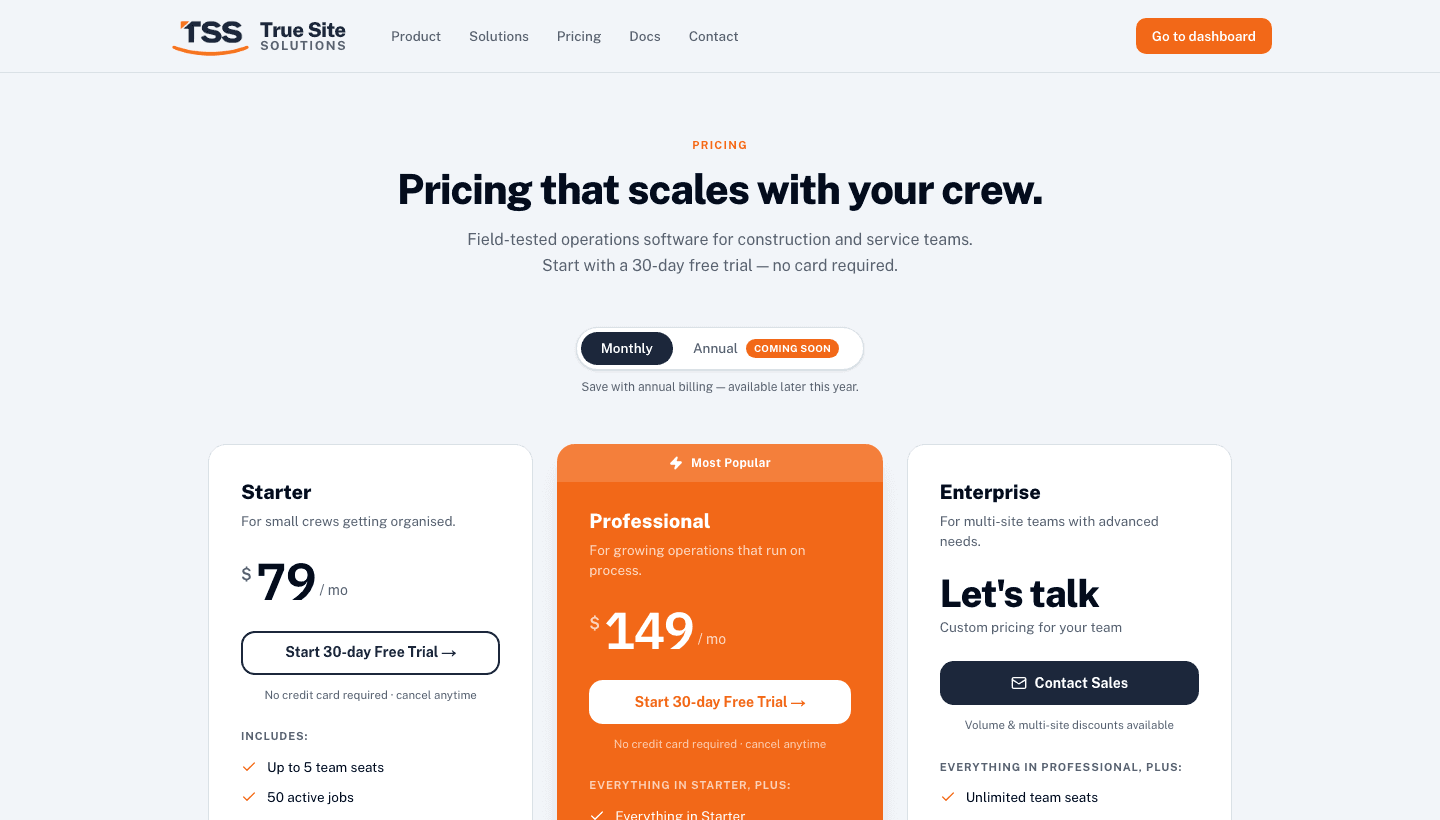
There are three plans. A seat is any person who is a member of your workspace, including operators and viewers. If you need more seats than your plan allows, upgrade before adding the next member.
- 50 active jobs
- Scheduling & dispatch board
- SOP builder & templates
- Mobile operator app
- Email support
- Everything in Starter
- Unlimited active jobs
- Multi-site projects
- Branded PDF compliance reports
- Priority support
- SSO (SAML) & SCIM provisioning
- Advanced security & audit log
- Dedicated success manager
- Custom integrations & SLA
- Onboarding & team training
3. The billing page
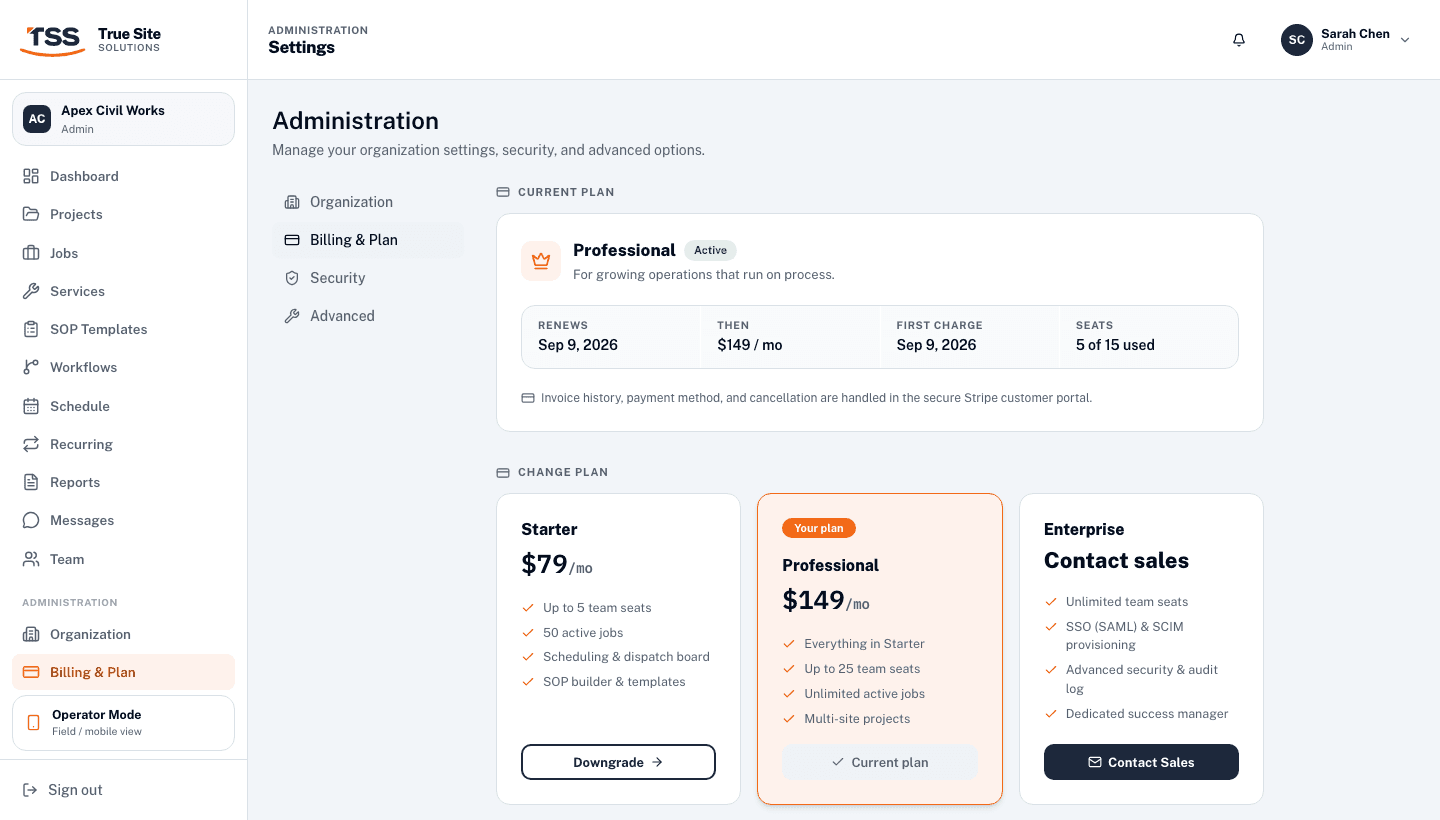
Navigate to Settings → Billing. Only Owners and Admins can access this page; Operators and Viewers are redirected to the dashboard. The page has two sections:
- Current Plan: shows your active plan, status badge, renewal date, price, first charge date, and how many seats are in use out of your allowance.
- Change Plan: three plan cards with an Upgrade / Downgrade button for Starter and Professional, and a Contact Sales link for Enterprise.
The status badge next to your plan name reflects the current subscription state:
4. Stripe customer portal
Payment details and invoice history are managed through the Stripe customer portal, not directly in the app. Click Manage Billing on the billing page to open it in a new tab. From there you can:
- Update your credit card or bank account
- Download past invoices as PDFs
- Cancel your subscription
5. Read-only mode
When a trial ends or a subscription is canceled, the workspace enters read-only mode. A red banner appears at the top of every page. In this state:
- All data is retained: jobs, reports, templates, and evidence are still there
- Anyone can view existing jobs, reports, and compliance data
- Creating new jobs, inviting members, running workflows, and generating reports are paused
Choosing a plan on the billing page restores full access instantly. No data needs to be re-imported or re-created.