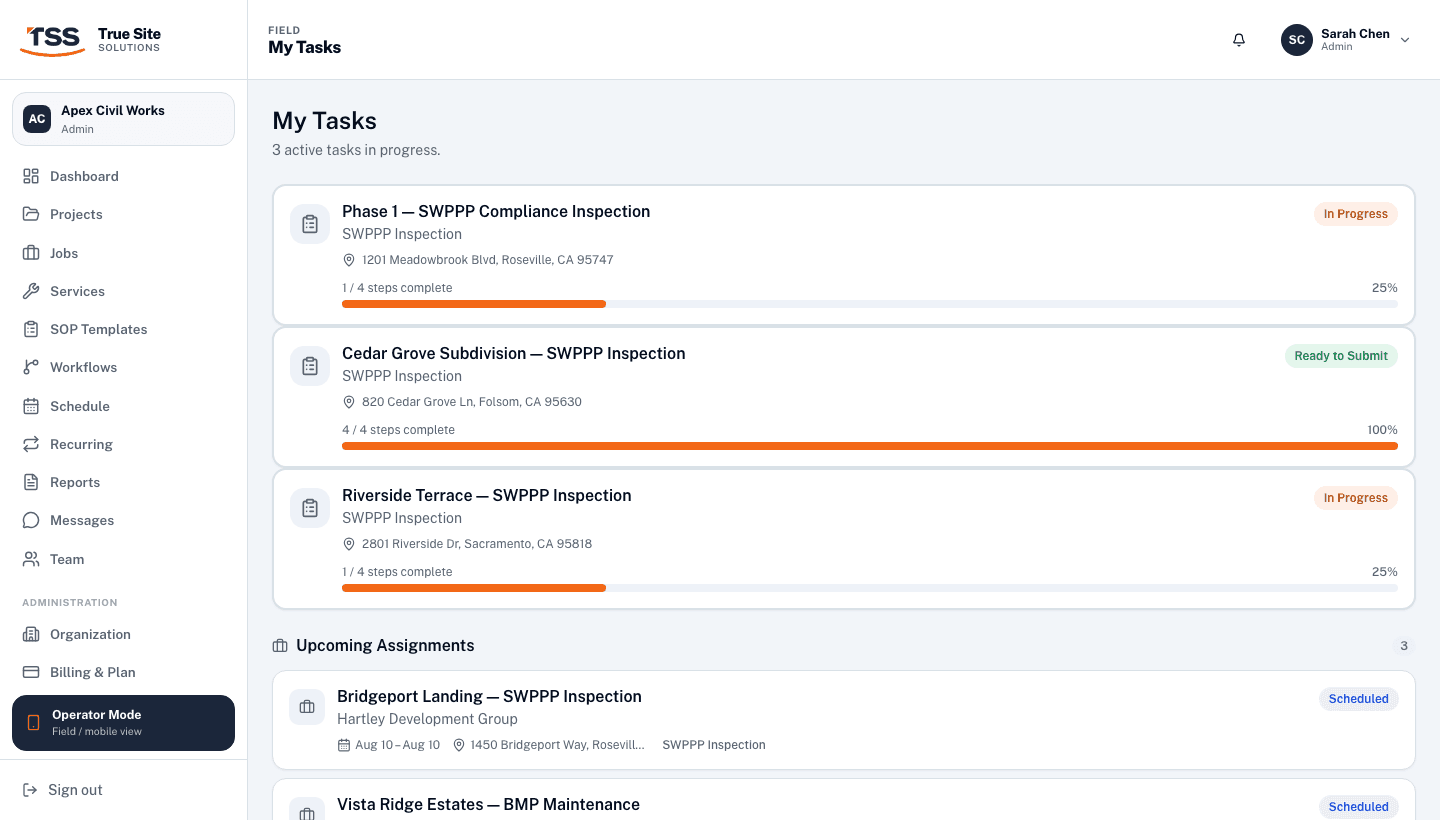

Managing jobs & the board
The Jobs board is where all work in True Site Solutions lives. You can see every job across your organization: what's scheduled, what's in progress, and what's complete, and dispatch new work in seconds.
1. The Jobs board
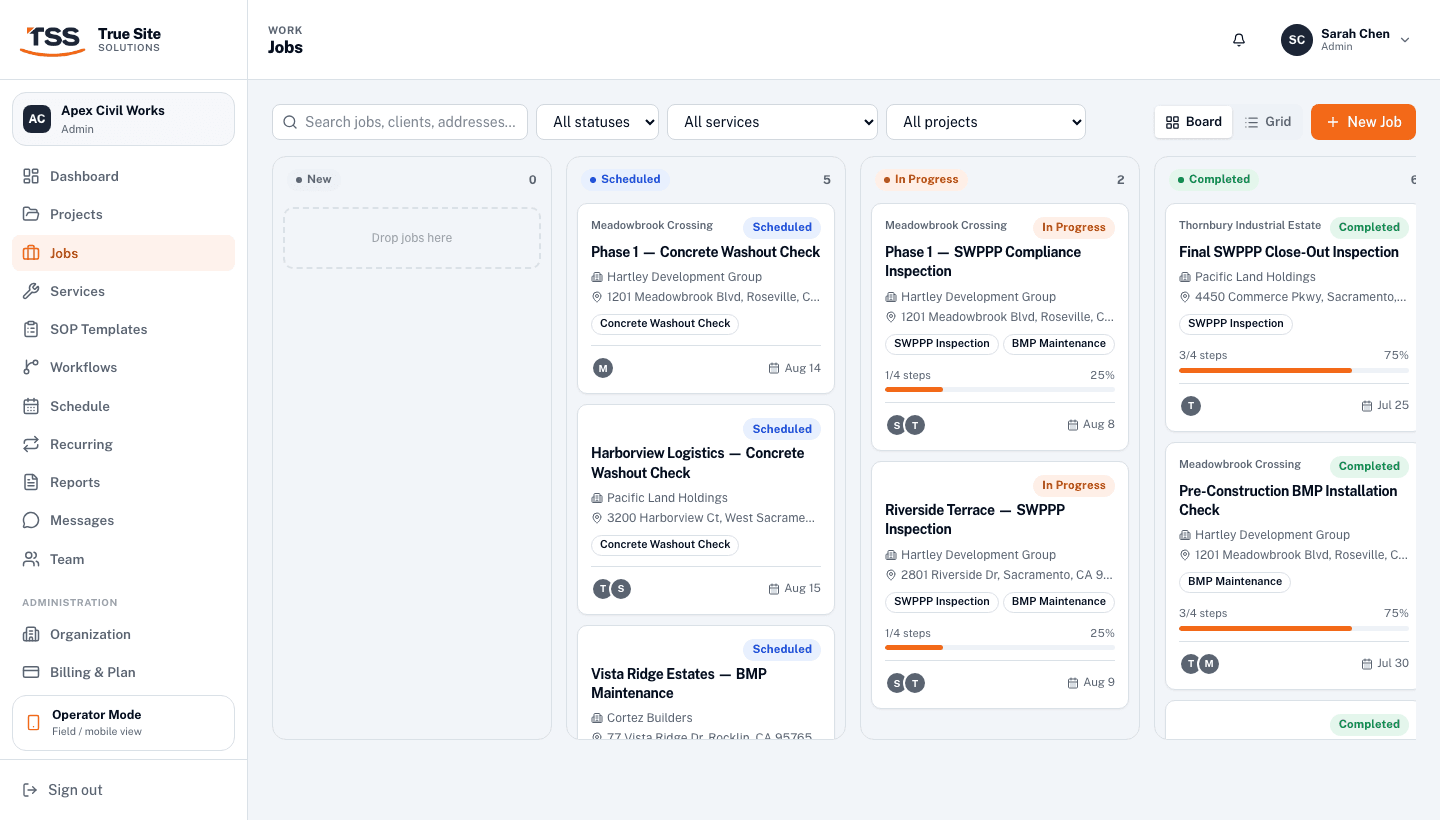
Navigate to Jobs in the left sidebar. The board shows all jobs grouped into kanban columns by status. You can filter by status, service type, or project using the dropdowns along the top, and search by client name, job title, or address using the search bar.
2. Board vs Grid view
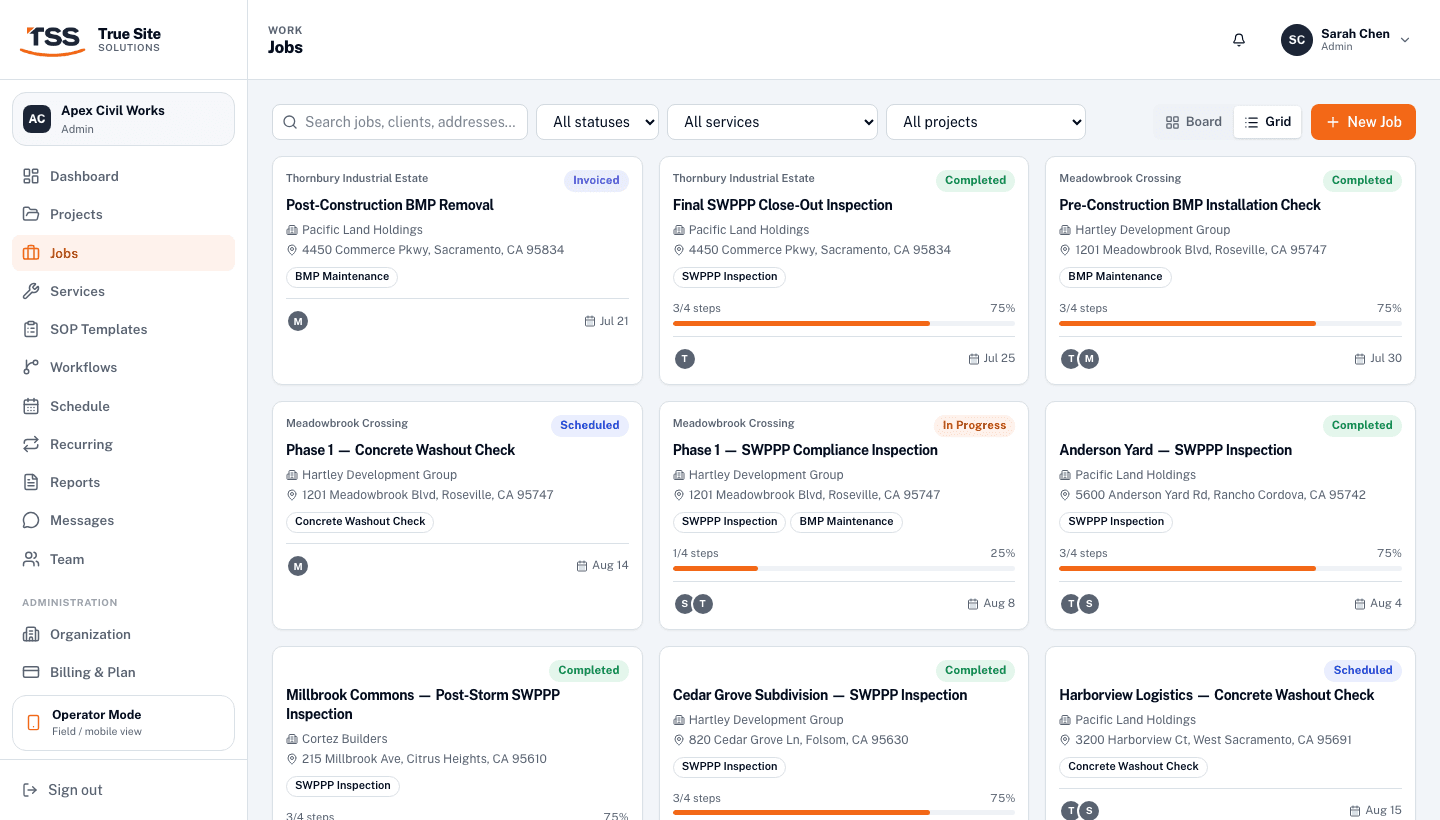
Toggle between Board and Grid in the top-right corner. Board view groups jobs by status and is best for seeing pipeline at a glance. Grid view shows all jobs as a flat list sorted by scheduled date, useful for spotting overdue jobs or scanning a large backlog.
3. Creating a job
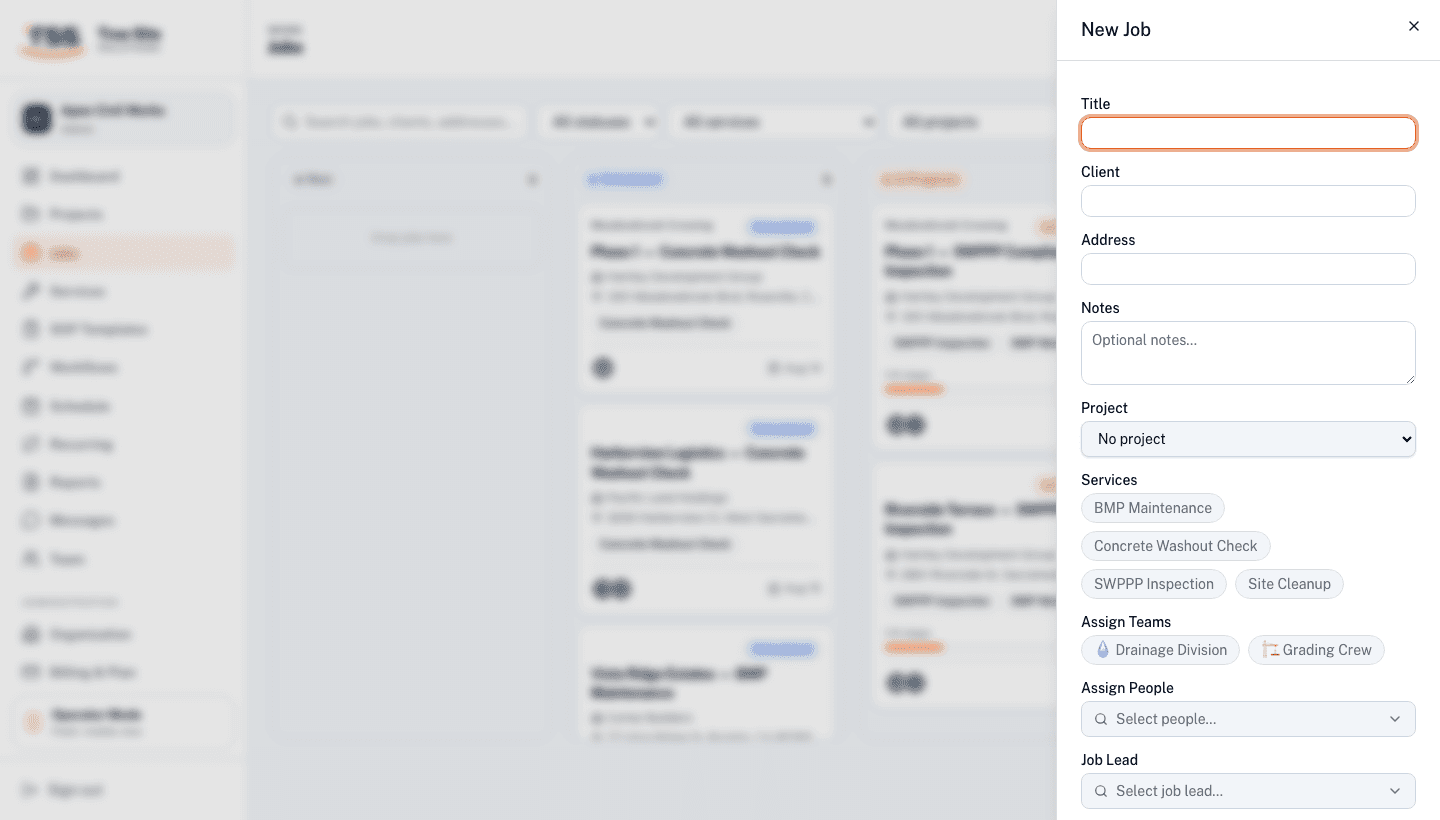
Click + New Jobin the top-right corner. A panel slides in from the right. Fill in the job title, client, and site address. These appear on the operator's task and on the final compliance report.
Select the Services for this job: SWPPP Inspection, BMP Maintenance, Concrete Washout Check, and so on. Each service links to a default SOP template so the right workflow is queued automatically.
Assign the job to a Team or individual People, set a Project if needed, and pick a scheduled date. The job moves to Scheduled status automatically.
4. Job status
Every job moves through a standard lifecycle. Admins and owners can move a job to any status at any time from the job detail panel.
5. Job detail panel
Click any job card to open the detail panel. From here you can:
- Change the job status with a single click
- Edit the job title, client, address, services, and assignment via the Edit button
- See the SOP workflow progress and which step the operator is currently on
- Generate a Customer link, a read-only report page anyone can view without logging in