
Running jobs from the field
The operator experience is built for a phone in a muddy glove, with big tap targets, one step at a time, and auto-save after every input. No app store required: it runs in any mobile browser and works offline.
1. Accessing the app
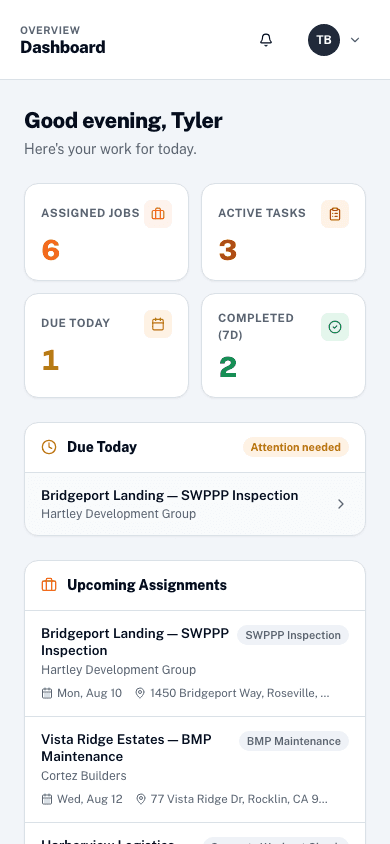
Operators open truesitesolutions.com in their phone's browser and sign in. After login they land on My Tasks, their personal view of everything assigned to them. Admins who want to see the operator perspective can navigate to Workflows and click any active task row to open the same runner in read-only review mode.
2. My Tasks screen
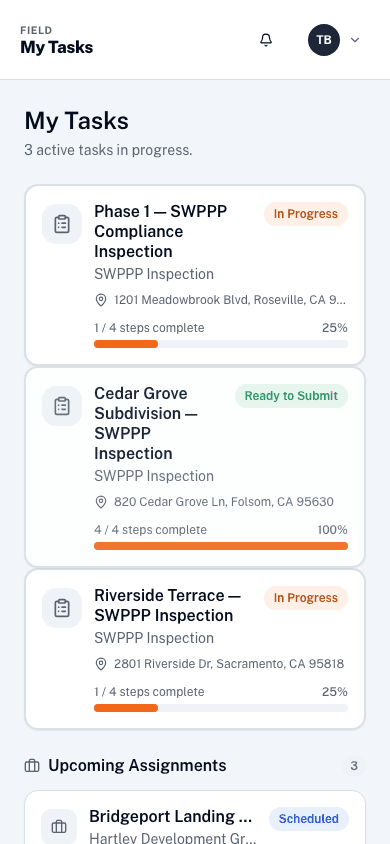
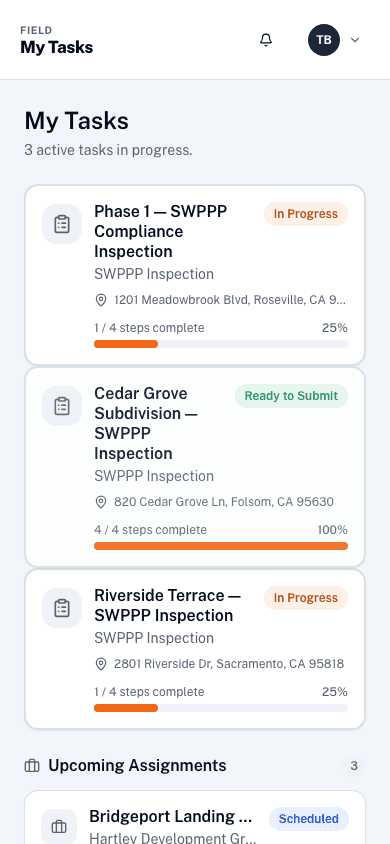
My Tasks is the operator's home screen. It shows two things:
- Active tasks: SOP workflows the operator has already started, with a progress bar. When there is exactly one active task, a dark "Continue where you left off" card appears at the top for a one-tap resume.
- Upcoming assignments: jobs that are assigned to this operator but haven't been started yet, with client, address, and scheduled date.
3. Running a workflow
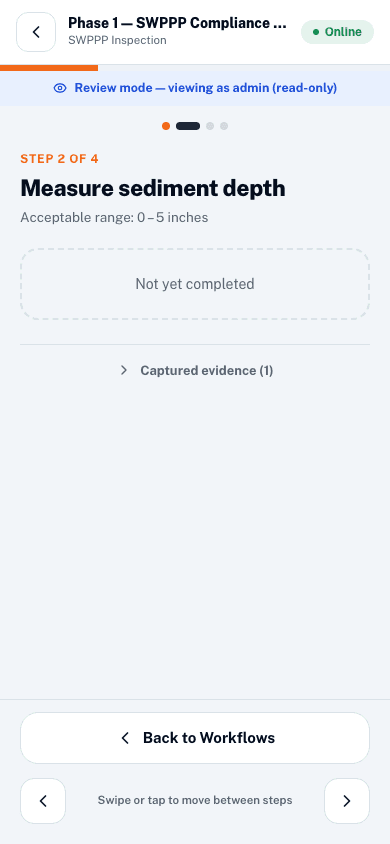
Tapping a task opens the step runner, a clean full-screen interface that shows one step at a time. The job title and SOP template name appear in the header, and a thin progress bar below it shows how far through the workflow you are.
4. Step types
Each step in an SOP template has a type that determines what the operator is asked to capture.
5. Completing & submitting
Once all required steps are answered, a green Complete Task button appears on the last step. Tapping it opens a review screen that lists every step with its captured value. From there, tap Submit for Approval and the inspection goes to your manager and a PDF report begins generating immediately.