SOP Templates define the exact sequence of steps an operator follows in the field: what to check, how to record it, and what evidence to capture. Each template is linked to a service, so the right workflow is queued automatically when a job is dispatched.
1. The template library
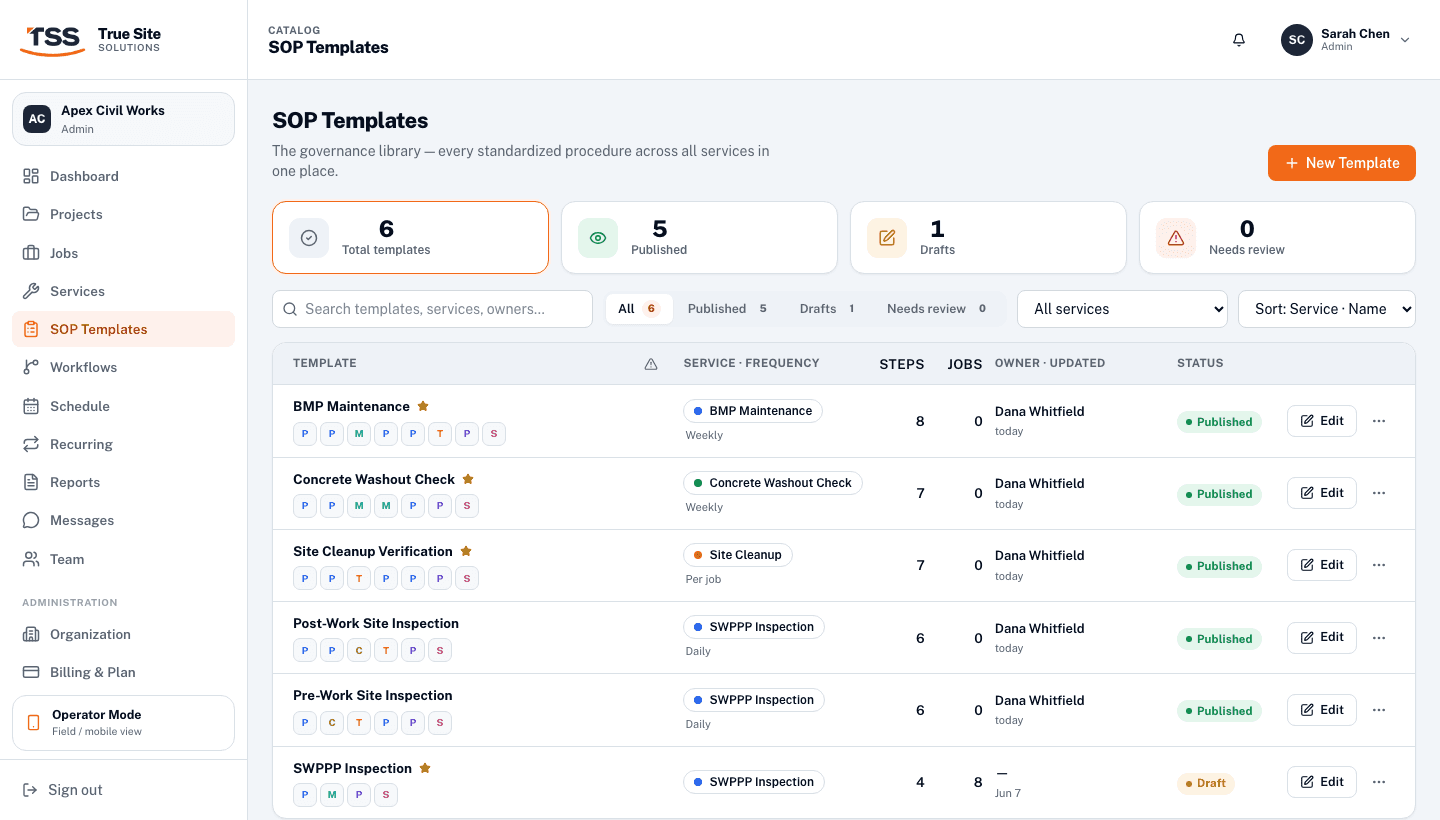
Navigate to SOP Templates in the left sidebar. The library shows every template across your organization: total count, how many are published, and how many are drafts or flagged for review. Filter by service or sort by name, usage, or step count.
Only Published templates are visible to operators in the field. Drafts are hidden until you publish them.
2. Creating a template
Click + New Template in the top-right corner. A blank template opens with two areas: the step editor on the left, and a Live Operator Preview on the right that updates in real time as you build.
Start by giving the template a name, then add steps using the + buttons along the bottom, or jump-start with a preset:
⚡ Quick Check
3 pass/fail steps: site entry, hazards, PPE.
🪣 Safety Inspection
7-step safety walkthrough with photo evidence.
📐 Measurement
Measurement-focused template with range validation.
3. Step types
Each step has a type that determines what the operator sees and interacts with. The Live Operator Preview shows exactly how it will appear on their phone.
Pass / Fail
A binary inspection check. The operator taps PASS or FAIL. You can require a photo, note, or signature on fail only, or always.
Used for: Inspecting fence integrity, checking inlet protection, verifying stabilisation.
Measurement
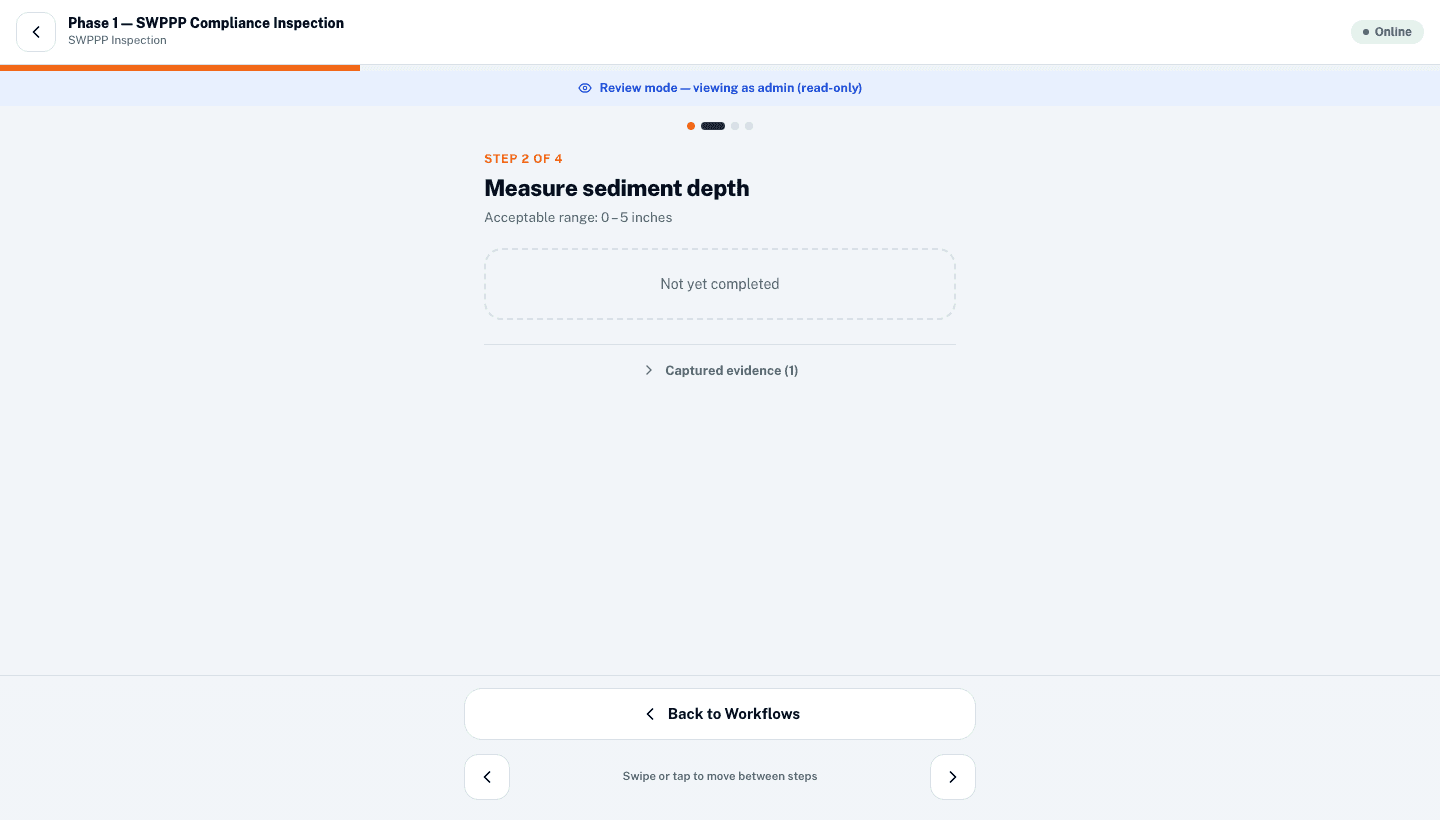
A numeric value with an optional acceptable range. The operator enters a number; out-of-range values are flagged automatically.
Used for: Sediment depth, turbidity readings, slope gradient.
Multiple Choice
The operator selects one option from a list you define. Useful when the answer isn't just pass/fail.
Used for: Condition rating (Good / Fair / Poor), material type, drainage direction.
Checklist
A set of items to tick off. All items must be checked before the step is marked complete.
Used for: Pre-site safety checks, equipment lists, site entry requirements.
Photo
Requires the operator to take or attach at least one photo before proceeding.
Used for: Documenting BMP installation, before/after evidence, signage compliance.
Text Input
A free-text field for notes, observations, or licence plate numbers.
Used for: Vehicle ID, contractor name on site, field observations.
Signature
A drawn signature captured on-screen. Locks the step once signed.
Used for: Operator sign-off, inspector acknowledgement, permit confirmation.
On Pass / Fail steps you can require additional evidence On Fail Only or Always. Requiring a photo on fail automatically surfaces a remediation record in the compliance report.
4. Template settings
Click the Settingstab to configure the template's metadata. These fields appear on the job report and control when and who can run the template.
Template ownerThe team member responsible for keeping the template up to date.
StatusDraft (hidden from field) or Published (visible to operators).
Flag for reviewMarks the template in the library so an admin knows it needs a compliance check.
DescriptionInternal notes: what this SOP covers, when to run it, and any regulatory context.
Estimated durationHow long the SOP takes. Shown to the operator and used in scheduling estimates.
FrequencyHow often this SOP should be run: Daily, Weekly, Per job, etc. Shown in the library.
Who can run this SOPRestrict to specific roles, e.g. Operators only, or allow Admins to run it in the field too.
Required equipmentPPE and tools the operator must have. Shown as a pre-task checklist on the field app.
5. Tracking workflows
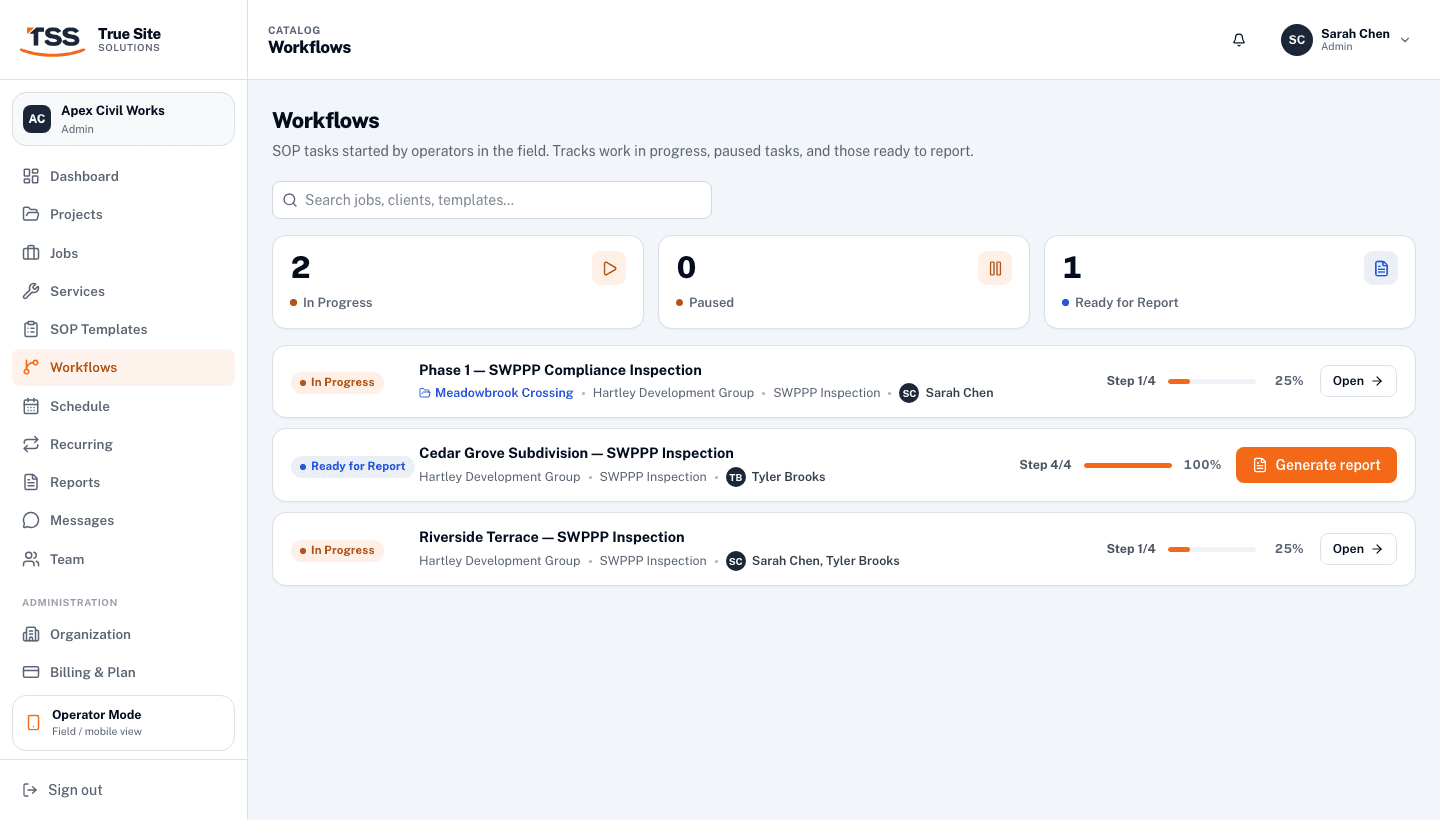
Navigate to Workflowsin the left sidebar to see every active SOP task across your organization. Workflows are created automatically when an operator starts a job in the field; you don't create them manually.
In ProgressOperator has opened the workflow and is actively working through steps.
PausedOperator saved progress mid-way, e.g. left the site. Can be resumed from the field app.
Ready for ReportAll required steps are complete. A PDF report can be generated from here.
Click Openon any workflow to review the operator's progress step by step in read-only mode. You can see exactly what was recorded, what evidence was captured, and which step the operator is currently on.
Admins viewing a workflow see Review mode (read-only): you can inspect every step without affecting what the operator sees or their progress.