When an operator completes a workflow in the field, True Site Solutions generates a branded PDF report automatically, capturing every step, photo, measurement, and signature captured on site. No manual write-ups, no chasing operators for notes after the fact.
1. Compliance dashboard
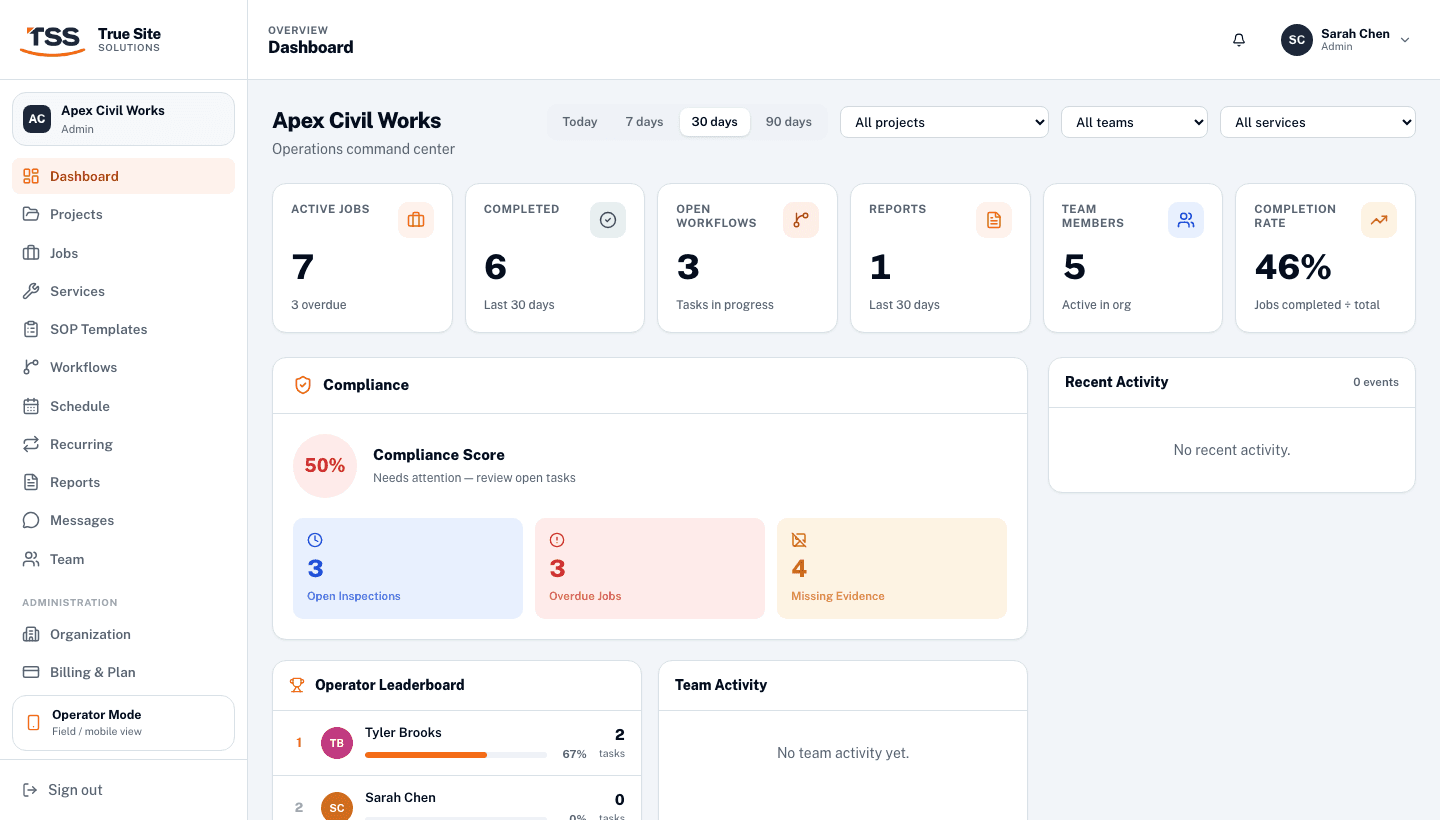
Your Dashboard includes a live compliance summary so you can spot problems at a glance, before they become a regulatory issue.
Compliance ScoreA 0–100% score calculated from completed vs total required SOP steps across all active jobs. 90%+ is Excellent; below 70% triggers a warning.
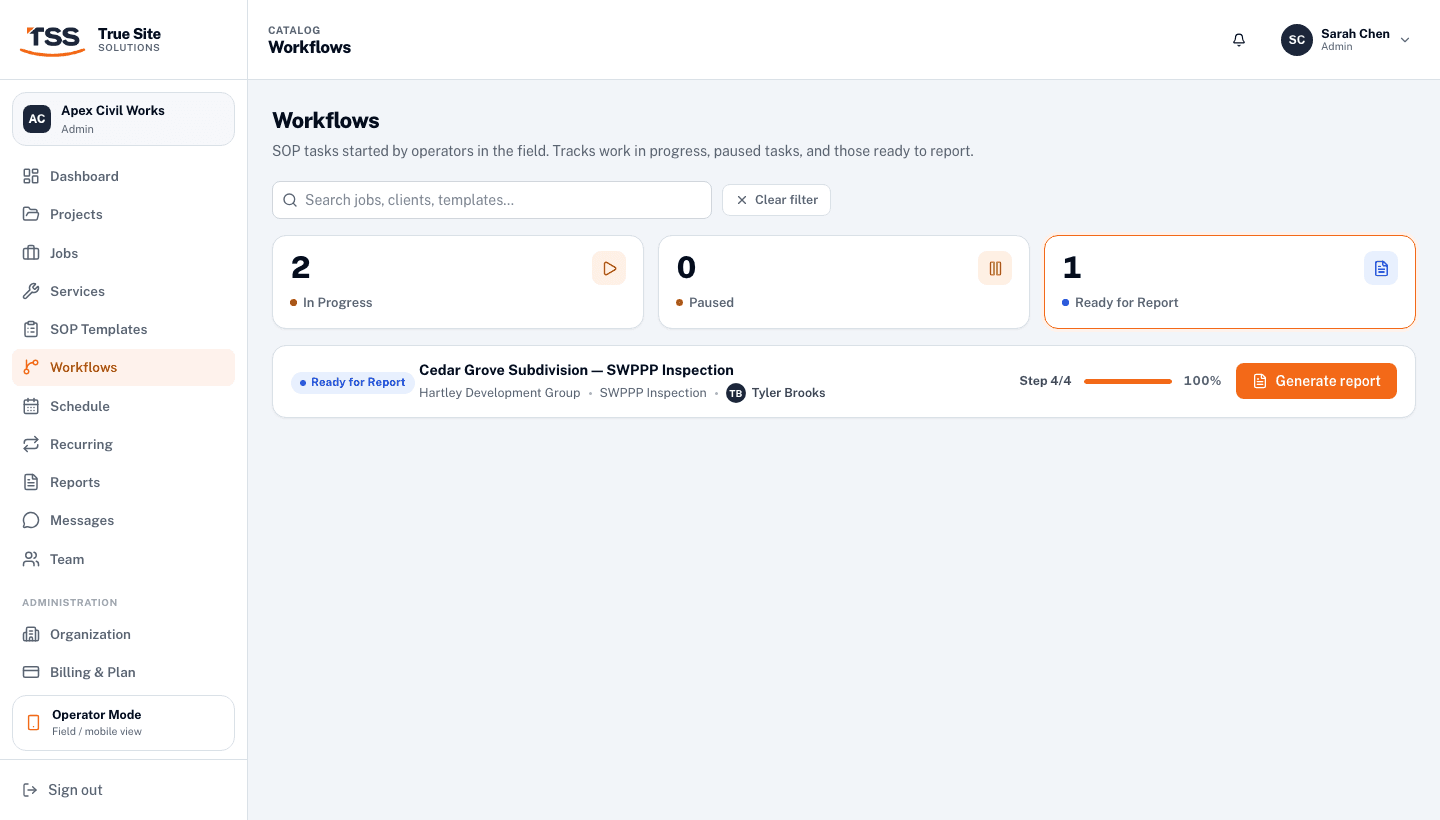
Open InspectionsWorkflows currently in progress in the field. Click to jump to the Workflows tracker.
Overdue JobsScheduled jobs that have passed their due date without being completed. Click to filter the Jobs board.
Missing EvidenceSOP steps marked Pass/Fail where the required photo evidence hasn't been captured. Click to see the specific workflows.
Recent FailuresThe most recent Pass/Fail steps where the operator selected Fail, so you know which inspections have active issues.
2. Generating a report
Reports can only be generated from a completed workflow, specifically one where the operator has finished all required steps. Once a workflow reaches Ready for Report status, a Generate report button appears on the Workflows page.
You can also generate a report from inside a job's detail drawer. Open the job from the Jobs board, scroll to the SOP progress section, and click Generate Inspection Report when the workflow is complete.
Only Admins can generate reports. Operators complete the workflow in the field; Admins review and generate the PDF deliverable.
3. The reports list
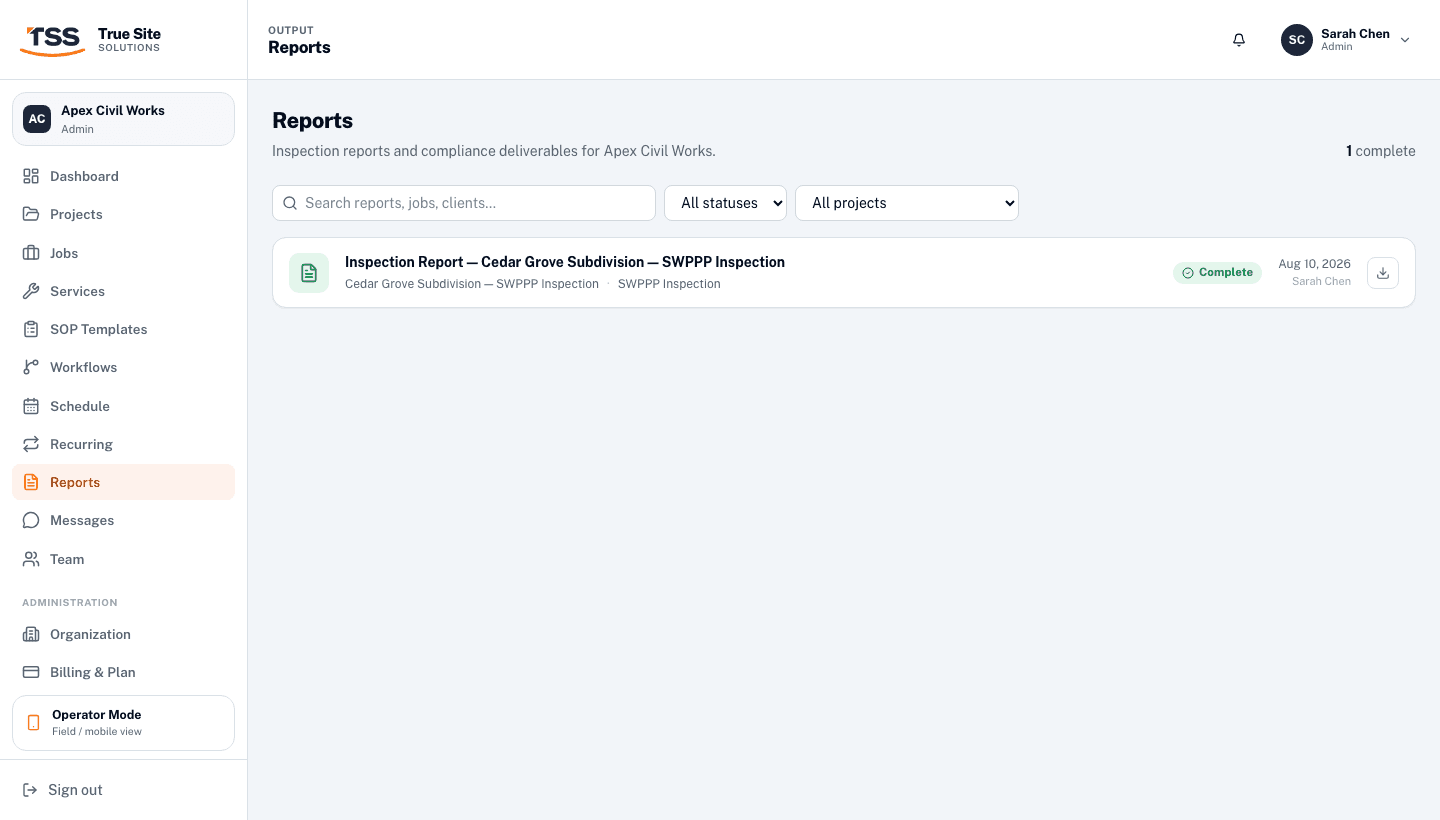
Navigate to Reports in the left sidebar to see every report across your organization. Search by report title, job name, or client name. Filter by status or by project.
PendingReport record created, waiting for the PDF to start generating.
GeneratingPDF is being compiled from the workflow data. Usually completes in seconds.
CompletePDF is ready. Download or share it from the report detail page.
FailedGeneration failed. Use Regenerate to retry; no data is lost.
ArchivedMarked as archived. Still visible in the list but dimmed.
4. Report detail & PDF
Click any report to open its detail page. You'll see the job metadata: client, address, project, service, SOP template used, and the exact timestamp the workflow was completed, followed by an inline PDF preview.
Download PDFOpens the generated PDF in a new tab. Right-click to save it locally.
RegenerateRebuilds the PDF from the current workflow data. Use this if the workflow was updated after the initial report was generated.
ArchiveMarks the report as archived. It stays in the list but is dimmed and excluded from the active count.
5. Sharing with clients
Every completed job can be shared with a client via a unique, no-login link. Open the job drawer from the Jobs board, scroll to the Client access section, and toggle sharing on. A share link is generated instantly.
The share link opens a branded page showing your organization's name and logo, the job details, services performed, and a summary of the SOP steps and evidence captured. The page is read-only, requires no account, and is indexed with your org's brand colour.
No login required. Send it directly to a site manager or regulatory contact.
Branded with your organization name, logo, and brand colour.
Shows all photos, measurements, and step outcomes captured in the field.
Revocable: toggling sharing off immediately invalidates the link.
Share links are bearer tokens. Anyone with the URL can view the record. Only share with people you intend to have access. Toggling sharing off revokes access immediately.