

The schedule board & recurring visits
The Schedule board is your crew planning view. Every operator's week is laid out as a grid, with workload indicators and multi-day job spans visible at a glance. Pair it with Recurring Visits to generate jobs automatically on any cadence, without lifting a finger each time.
1. Day, Week & Month views
Navigate to Schedule in the left sidebar. Toggle between the three views using the buttons in the top-left of the toolbar.
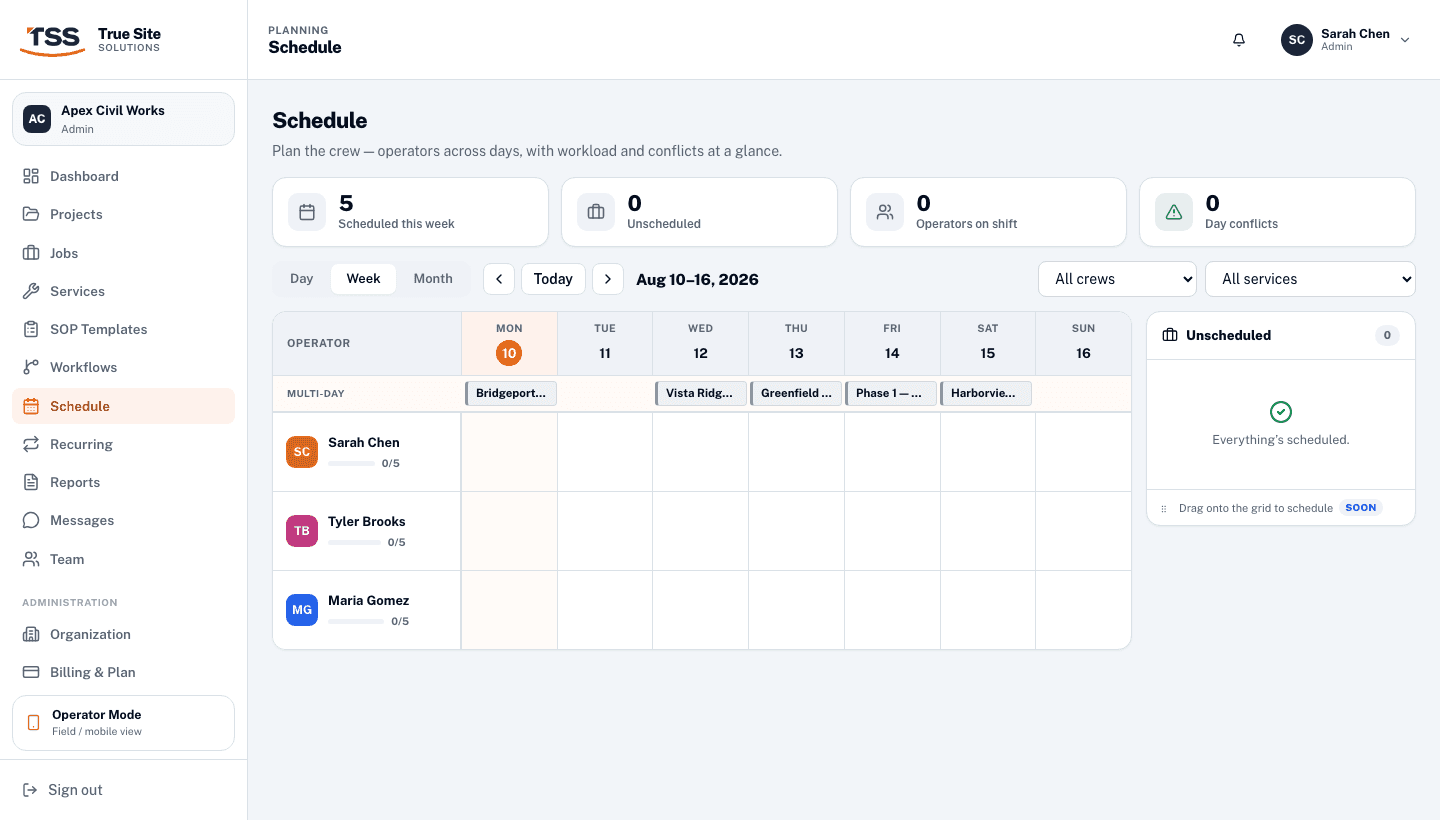
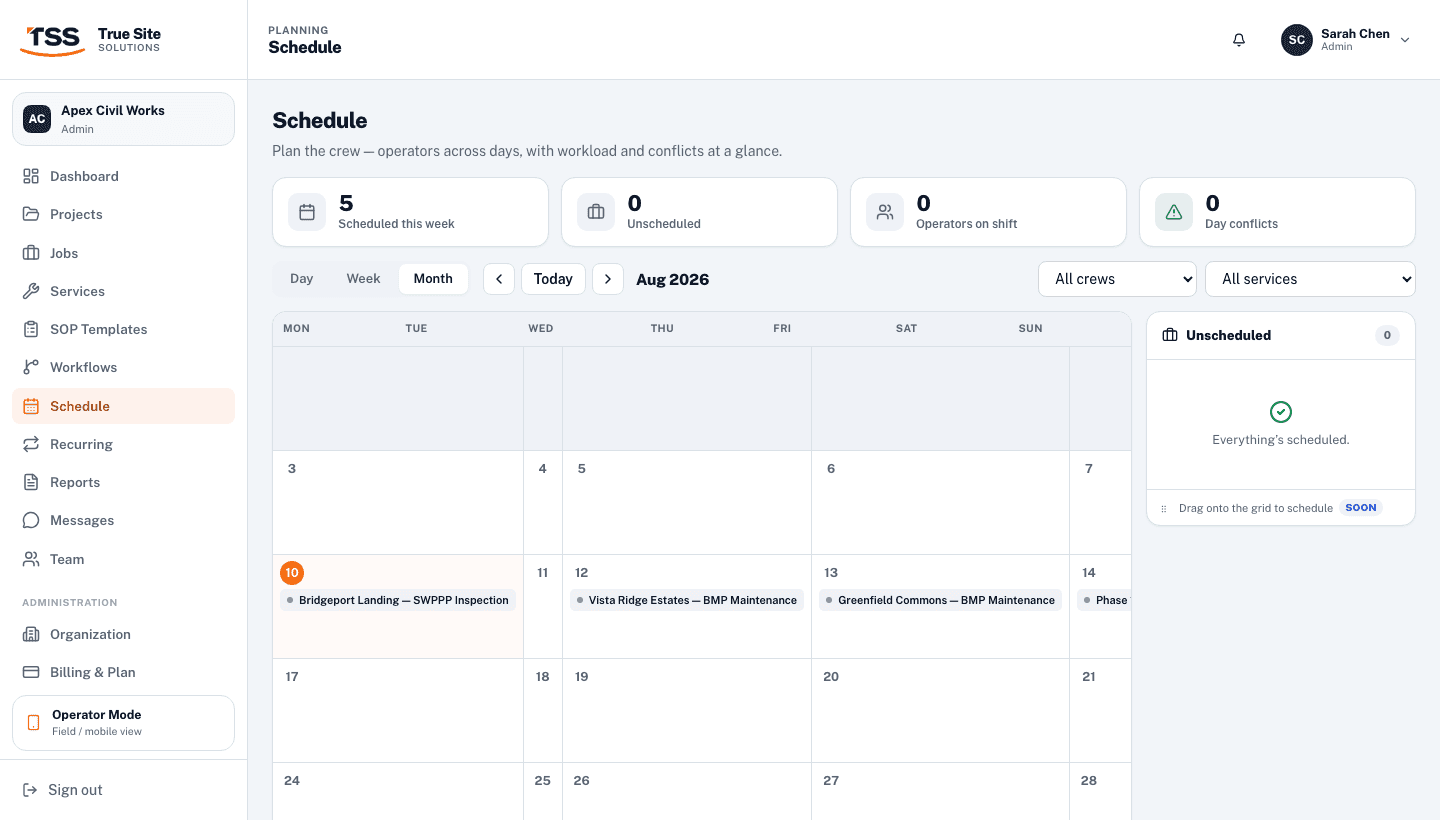
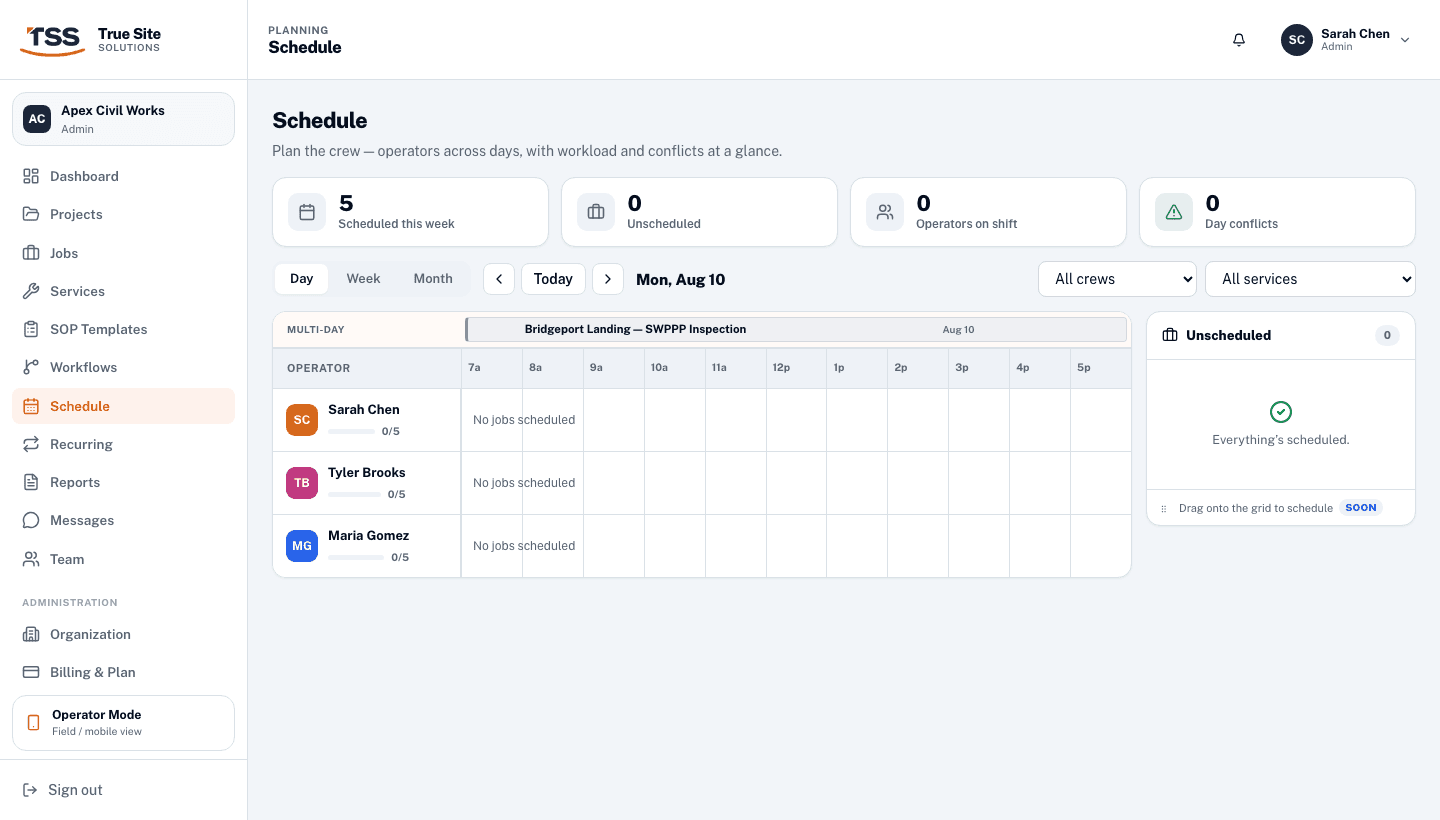
Use the ← / → arrows to move forward or back, and Today to jump back to the current date. The date label in the toolbar updates to show the visible range. Filter the board by crew or by service type using the dropdowns on the right of the toolbar.
2. Operator rows & workload
In week view, each row belongs to an operator. The left-hand label shows their name and a workload bar showing how many jobs they have scheduled this week versus the 5-job target. The bar turns red when someone is over capacity.
Click any job block to open the job drawer and review or update its details without leaving the schedule.
3. Multi-day jobs
When a job has both a Start date and an End date set, it appears as an all-day banner spanning the relevant columns. These are shown in a dedicated Multi-day strip above the operator rows in week view, and as spanning chips in month view.
A chip with a › arrow continues into the next week or month; click it to open the job and see the full date range. To set a date range on a job, open the job drawer and fill in both the Scheduled Start and Scheduled End fields.
4. Recurring visits
Navigate to Schedule → Recurring Visits to manage repeating jobs. Each recurring schedule generates a real job automatically at the configured cadence, with no manual creation needed each cycle.
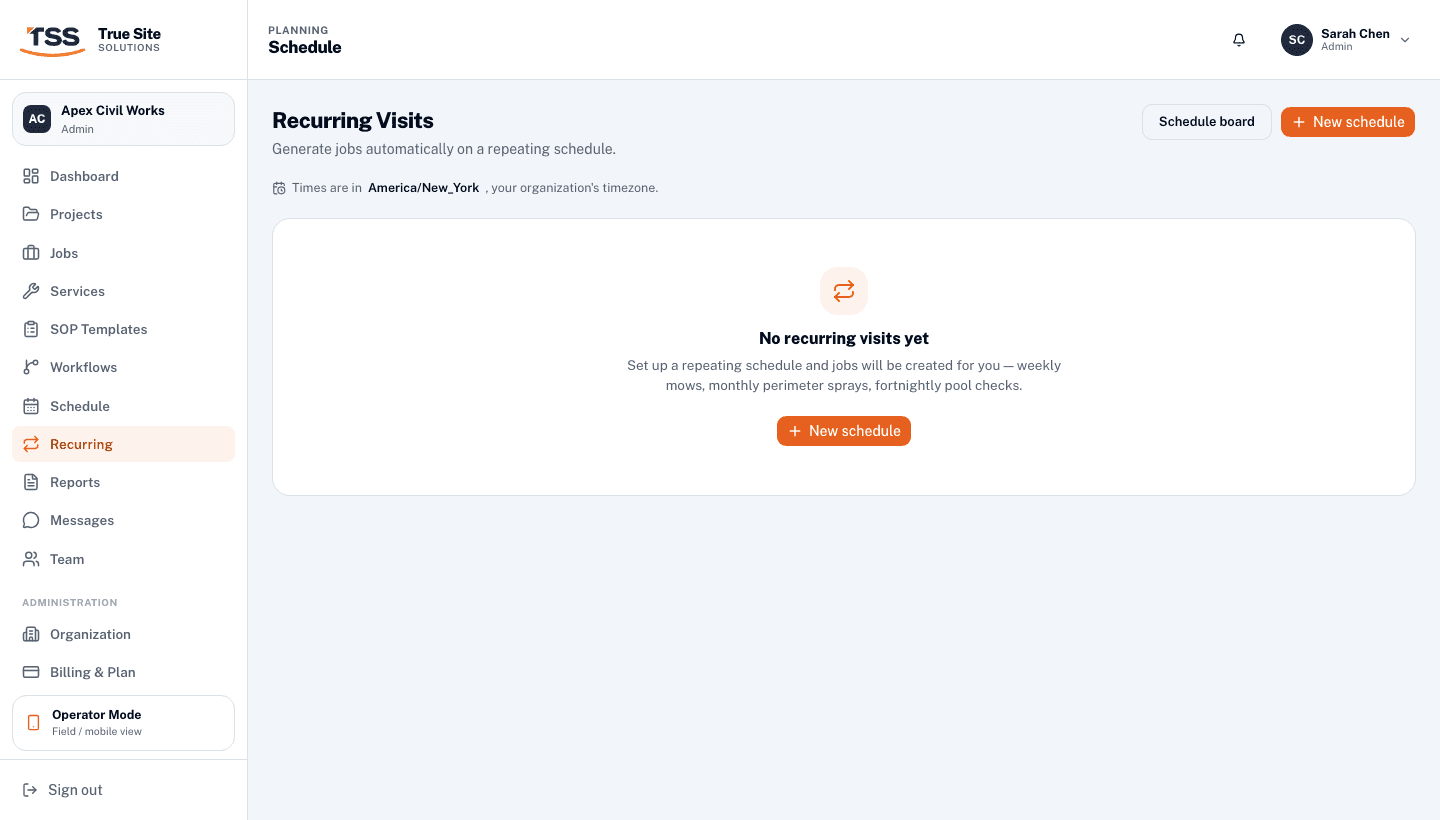
Click + New schedule to create one. Fill in the job details (title, client, services, assigned operators or teams), then set the recurrence:

You can also attach an SOP template to the schedule; every generated job will have the right workflow pre-queued, ready for the operator to run in the field. Set a Start date and optionally an End date if the engagement has a known finish.
Each schedule shows its next scheduled run, the number of jobs already generated, and can be paused or deleted at any time. Pausing stops future generation without deleting the schedule or the jobs already created.
5. Timezone
Recurring visits resolve in your organization's timezone. If no timezone is set, the system falls back to UTC, which will put jobs at the wrong time for crews working in a different zone. The Recurring Visits page shows a warning banner if your timezone isn't configured.
Set your timezone under Settings → Organization before creating recurring schedules.